Live chat FAQ: what customers ask, with ready-made answer examples
What is live chat, how is it set up, and who replies? The questions businesses ask most, plus answer examples you can adapt for common questions in your site’s chat.
Most questions that come up before adding live chat to your site are the same: how is it set up, who will reply, what happens if nobody is there? In this guide, we first answer the live chat FAQ from businesses, then give answer examples you can adapt for the questions visitors ask most often.
Basic questions about live chat
What is live chat?
It’s a small messaging window that opens in the corner of your website. The visitor writes without leaving the page, and your team replies from the panel.
How is it set up?
As with most tools, in OnlyContact live chat you copy a short piece of code from the panel and paste it into your site. It works on WordPress, Shopify, Webflow or custom-built sites where you can add code. You can also make the window open only on your own domains.
Where are replies given from?
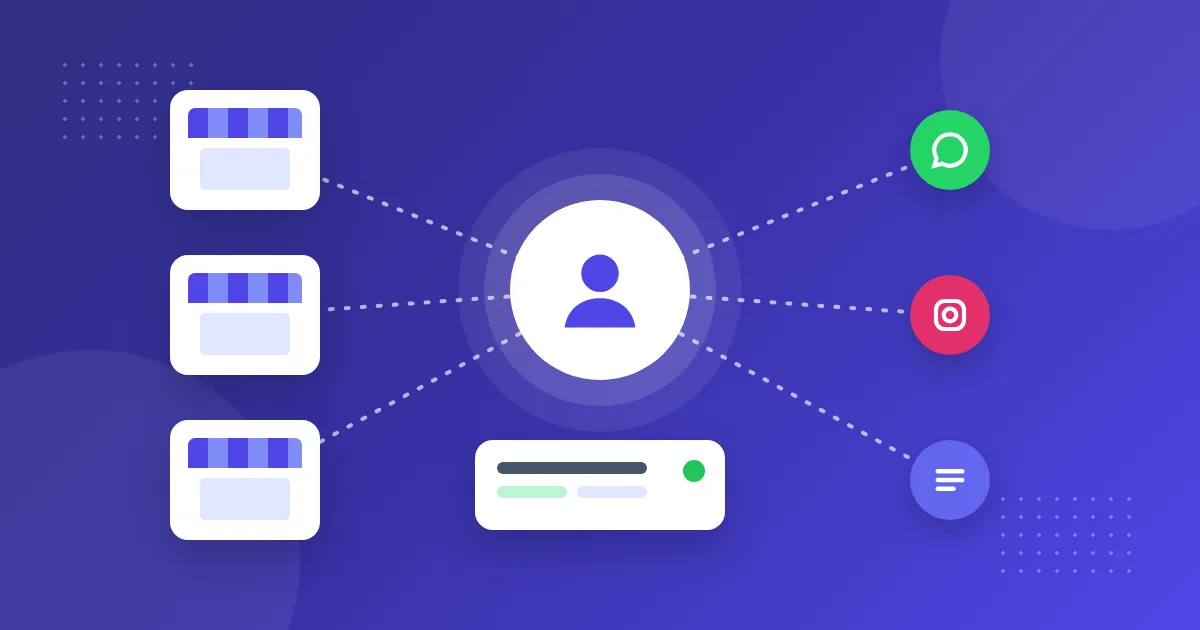
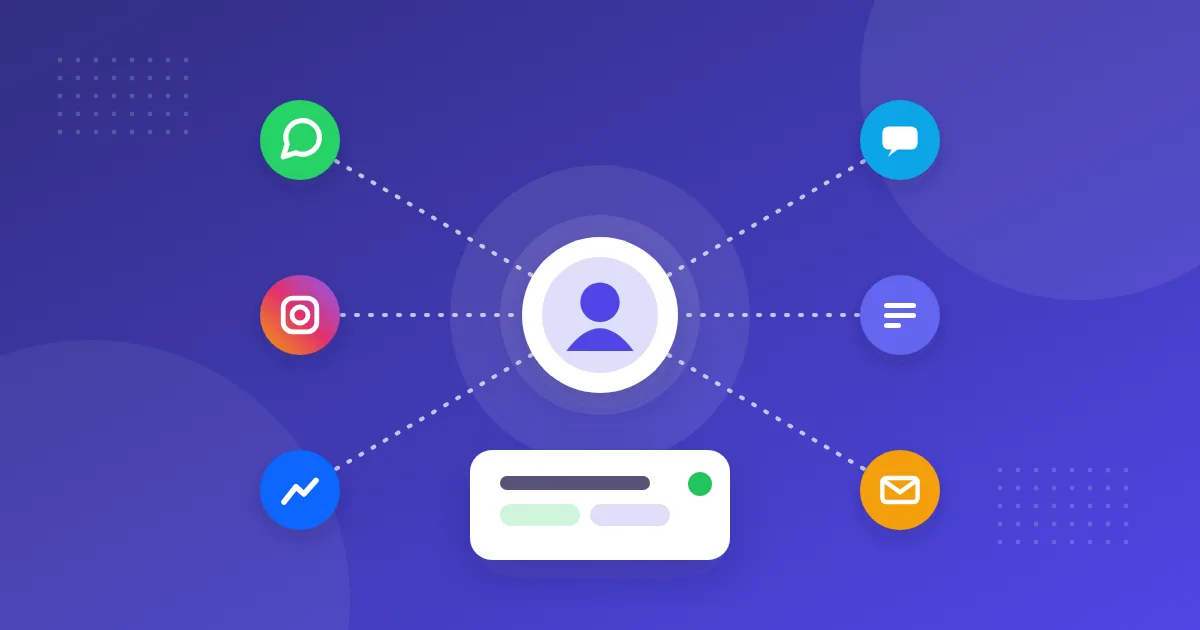
In OnlyContact, chats land in the same shared inbox as WhatsApp, Instagram and Messenger and are assigned to team members in turn. This means you don’t have to watch a separate screen.
What happens if nobody is online?
The window shows that you are offline and asks the visitor for an email address or phone number; you get back to them later. The status depends on whether someone from your team is in the panel; there is no separate working hours setting. If you wish, you can turn on the AI assistant during these hours.
Can it be used from a phone?
On the visitor’s side, the window opens full screen on a phone. Your team uses the panel from a browser or from the web version that can be installed on a phone like an app, and can receive push notifications. There is no separate app-store app.
What happens when the visitor leaves the chat?
The visitor can select “End chat”; the history is deleted from that device. A chat with no messages for 24 hours closes on its own. The next message starts a new conversation.
Does every chat become a lead?
In OnlyContact, yes: with the first message, a lead is automatically created in the CRM. Because the email address the visitor types is not verified, it isn’t merged with an existing customer automatically but appears as a suggestion.
Which languages does it work in?
The window comes with ready-made texts in 29 languages; Arabic, Hebrew and Persian are displayed right to left. One window works for all your site’s languages: it looks first at the visitor’s choice, then at the page language and finally at the browser language. After the first message, the conversation stays in the language it started in. You can change the text for each language and set the color, position and welcome message yourself. Messages are not translated automatically; your team sees each message in the language the visitor wrote it in.
What information can be requested before the chat starts?
Name, email, phone, company, subject and one field of your own can be made optional or required, and a consent checkbox can be added. If you turn them all off, the visitor starts writing right away. You can also show links to your other channels, such as WhatsApp and Telegram, in the window.
The questions visitors ask most, with answer examples
Adapt the texts below with your own details. Write only accurate and up-to-date information.
Price
The price depends on the service you choose. If you tell me briefly what you need, I’ll share the best option and the amount.
Delivery or timing
The average time for [city/country] is [X days]. If you send me your order number, I can check its status with our team.
Working hours
We reply on weekdays between [hours]. If you leave your email, we’ll get back to you first thing.
Appointment or demo
Of course. Could you send me a day and time that suits you, along with your phone number? Our team will get back to you to confirm.
Return or complaint
I’m sorry about the problem you’ve had. If you share your order details, I’ll pass this to the colleague responsible and give you a clear timeframe.
Request to speak to a person
Of course, I’m transferring you to someone on our team right away. If we’re busy at the moment, we’ll get back to you within [time] at the latest.
Turn frequently asked questions into faster replies
- Pull the ten most repeated questions from the last month’s chats
- Write a short, accurate answer to each and keep them in one document as a team
- Publish the same texts in the FAQ section of your website
- If you are going to use the AI assistant, add these texts to the assistant’s information field
- Review information that changes, such as prices and campaigns, every month
OnlyContact has no saved replies feature in the panel, so you need to keep the texts in a shared document. The AI assistant, on the other hand, replies from the information you write, introduces itself as AI in its first reply and hands the conversation over to the team when needed.
For more, see the website live chat guide or compare plans on the pricing page.